
Last updated: August 19, 2026
Run Your Own AI: The Beginner’s Guide to Local LLMs in 2026
You’re paying $20 a month for ChatGPT. You’re sending your thoughts, your code, your writing, your life to servers you don’t control. And for what? A chatbot that could change its terms tomorrow?
What if I told you that right now, in 2026, you can run AI models on your own laptop — for free, completely offline, with quality that rivals the cloud stuff? No subscription. No data leaks. No one watching.
Because you can. And it’s easier than you think.
Think of the talents God gave you — your skills, your resources, your tools. The parable of the talents isn’t just about money. It’s about multiplying what you’ve been given. Running your own AI is about taking the tools available to you and putting them to work under your control, for your purposes, to serve your mission. That’s good stewardship.
Why Run AI Locally? (Beyond Just Saving Money)
Sure, saving $240 a year matters. But the real reasons go deeper.
Privacy That Actually Means Something
Every prompt you send to a cloud AI service is data leaving your machine. Your code snippets. Your business plans. Your personal journal entries. Your kids’ homework questions. All of it traveling to servers owned by companies with their own incentives.
When you run AI locally, your data stays on your hardware. Period. No terms of service to read. No privacy policy changes to worry about. Your machine, your data, your rules.
Tools like Jan — an open-source ChatGPT alternative with over 5.5 million downloads — are built around this principle. Your conversations never leave your device.
Works Without Internet
Power outage? Rural cabin? Traveling through a dead zone? Your local AI still works. No “checking network connection” errors. No spinner of death while it tries to reach the server. It just works, because it’s your machine doing the thinking.
In a world that’s increasingly fragile, having tools that work offline isn’t just convenient — it’s preparation. Be ready.

Digital Sovereignty
This one matters more than people realize. When you depend on cloud AI, someone else decides:
- Which models you can use
- What content is allowed or blocked
- When features change or disappear
- How much you pay (and when prices go up)
- Whether the service even exists tomorrow
Running local AI means you decide all of that. Nobody can pull the plug on your tools. Nobody can change the rules mid-game. That’s sovereignty — and in uncertain times, it’s worth building.
The Models Have Caught Up
Here’s the thing that changed everything: open-source models in 2026 are genuinely good. We’re not talking about toy chatbots anymore. DeepSeek-R1 reasons through complex problems. Qwen3 handles multilingual tasks like a champ. Gemma3 runs fast even on modest hardware.
The gap between “free local model” and “$20/month cloud model” has narrowed to the point where, for most daily tasks, you honestly can’t tell the difference.

What Hardware Do You Actually Need?
Here’s where people get scared off unnecessarily. Let me be clear: you don’t need a $3,000 gaming rig to run local AI.
Minimum (It’ll Work)
- RAM: 8GB (you’ll be limited to smaller models)
- Storage: 10GB free space for one model
- CPU: Any modern processor from the last 5 years
- What runs: Small models like Gemma3 1B or Qwen3 1.5B — they’re surprisingly capable for basic tasks
Recommended (Sweet Spot)
- RAM: 16GB (opens up the good models)
- Storage: 30-50GB free space (you’ll want to try multiple models)
- CPU: Modern multi-core processor
- Bonus: Any dedicated GPU with 8GB+ VRAM (NVIDIA or AMD) — this makes everything faster
- What runs: DeepSeek-R1 7B, Qwen3 8B, Gemma3 4B — the sweet spot of quality and speed
Enthusiast (No Compromises)
- RAM: 32GB+
- GPU: NVIDIA RTX 3060 or better (12GB+ VRAM)
- What runs: Larger models like Qwen3 14B+ or DeepSeek-R1 14B — near-cloud quality
The key insight: models come in “quantized” versions — compressed formats (GGUF) that shrink them to fit consumer hardware with minimal quality loss. This is what llama.cpp pioneered, and it’s why local AI is even possible on regular computers.
Getting Started: Three Paths, Pick Your Favorite
I’m going to show you three tools. Pick one that matches your style. All three are free.
Path 1: Ollama (The Hacker’s Choice)
Ollama is the fastest path from “I want local AI” to “I’m chatting with local AI.” It runs from the command line, installs in one command, and handles everything — model downloading, hardware detection, serving — automatically.
Install:
# macOS / Linux
curl -fsSL https://ollama.com/install.sh | sh

# Windows — download the installer from https://ollama.com
Run your first model:
# Download and run DeepSeek-R1 (7B parameter model)
ollama run deepseek-r1:7b

# That's it. You're now chatting with a reasoning model locally.
Try other models:
# Fast general-purpose model
ollama run qwen3:8b

# Lightweight but capable
ollama run gemma3:4b

# See all available models
ollama list
Ollama also integrates directly with tools like VS Code extensions, coding assistants, and even tools like OpenClaw and Codex — so your local models become the backbone of your whole workflow.
I’ve written about setting up local dev environments before — check out my beginner’s homelab guide for the broader picture of running your own infrastructure.
Path 2: LM Studio (The GUI Person’s Dream)
Not a terminal person? No judgment. LM Studio gives you a ChatGPT-style interface that runs entirely on your machine. It’s the easiest on-ramp for non-developers.
Setup:
- Download LM Studio from lmstudio.ai (free for personal and work use)
- Open it up — you’ll see a model browser
- Search for “Qwen3” or “Gemma3” or “DeepSeek”
- Click download on a model that fits your RAM
- Start chatting
That’s the whole process. LM Studio handles quantization, hardware optimization, and all the technical stuff in the background. You just pick a model and talk to it.
LM Studio also comes with Python and JavaScript SDKs if you want to build apps on top of your local models — but that’s optional. For most people, the chat interface is all you need.
Path 3: Jan (The Privacy Purist)
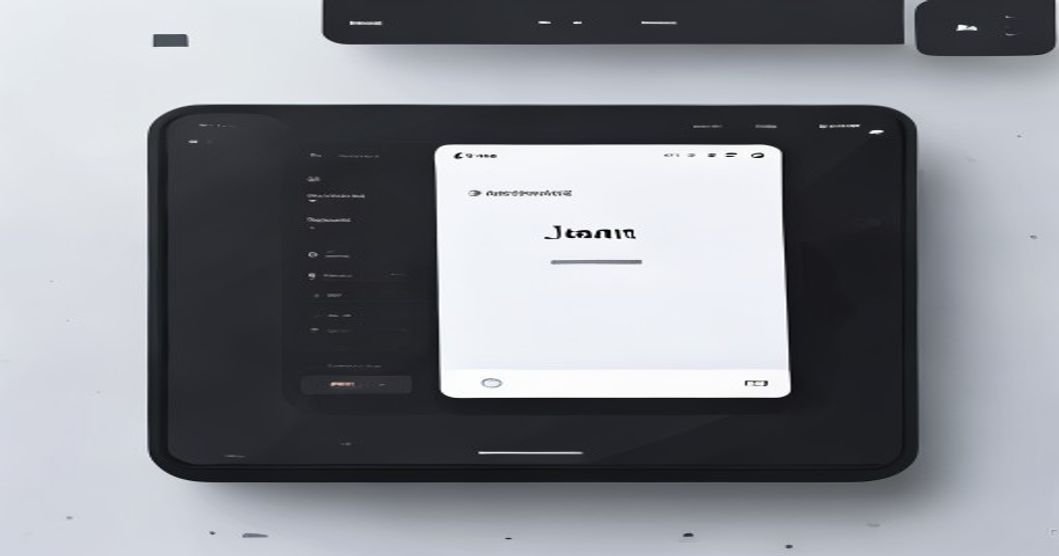
Jan is for people who want the most private, most offline experience possible. It’s an open-source desktop app with 41,900+ GitHub stars and 5.5 million+ downloads — this isn’t some sketchy side project. It’s a serious tool.
Jan runs completely offline. Not “mostly offline” — completely. No telemetry, no phone-home, no cloud fallback. Your data never leaves your machine, period.
Download it from jan.ai, install it like any other app, and you’re running. The interface is clean and familiar — it’s designed as a direct ChatGPT replacement, so the learning curve is basically zero.
Which Models Should You Start With?
The open-source model landscape is huge — Hugging Face Hub hosts over 1 million models. But you don’t need a million. You need three.
1. DeepSeek-R1 (Best for Reasoning)
DeepSeek-R1 is a reasoning model — it thinks through problems step by step, showing its work. Great for:
- Math and logic problems
- Code debugging
- Complex analysis where you want to see how it arrived at the answer
The 7B version runs well on 16GB RAM machines. It’s honestly impressive for its size.
2. Qwen3 (Best All-Arounder)
Qwen3 is your daily driver. It’s fast, capable across languages, and handles the broadest range of tasks well:
- Writing and editing
- Coding assistance
- Summarization
- General Q&A
The 8B parameter version is the sweet spot for most people with 16GB RAM.
3. Gemma3 (Best for Modest Hardware)
Google’s Gemma3 is designed to be efficient. If you’re working with 8GB RAM or just want something fast:
- The 1B and 4B versions fly on basic hardware
- Surprisingly good for their size
- Great for quick tasks where you don’t need heavy reasoning
My recommendation: Start with Qwen3 8B. It’s the best balance of quality and speed for most people. Branch out from there based on what you find yourself doing most.

What Can You Actually DO With Local AI?
This is where it gets fun. Here are real things people are doing with local AI right now:
Coding Assistance
Local AI pairs beautifully with coding workflows. With llama.cpp’s VS Code extension or Ollama’s integrations with coding tools, you can get code completion, debugging help, and code review without sending your proprietary codebase to anyone’s servers.
For more on building with AI tools, check out my roundup of AI coding tools for developers.
# Example: Use Ollama as a coding assistant
ollama run qwen3:8b "Review this Python function for bugs:

def calculate_total(items):
    total = 0
    for item in items:
        total += item['price'] * item['quantity']
    return total"
Writing and Brainstorming
Need blog post ideas? Help restructuring a paragraph? A second opinion on your resume? Local AI handles all of this. And because it’s private, you can brainstorm freely — no one’s building a profile on you based on your creative process.
Research and Analysis
DeepSeek-R1 is particularly good here. Feed it a document or a problem, and it’ll reason through it methodically. Great for:
- Analyzing data patterns
- Breaking down complex topics
- Generating step-by-step plans
Offline Productivity
Summarizing notes, drafting emails, creating outlines, translating text — all the stuff you’d normally reach for ChatGPT for, except it works on an airplane. Or during an internet outage. Or in your off-grid cabin.
When Cloud AI Still Makes Sense
I’m not going to pretend local AI is the answer to everything. It’s not. Here’s where cloud still wins:
- Massive models: If you need GPT-4-class or frontier models for complex tasks, the biggest models still require serious hardware. Cloud gives you access to models that won’t fit on a laptop.
- Multimodal heavy lifting: Video analysis, heavy image generation, long-document processing — these are still more practical in the cloud.
- Team collaboration: If your whole team needs shared access to the same AI-assisted workflows, cloud services have the infrastructure built in.
- Zero setup: Sometimes you just need an answer now and don’t want to think about hardware. That’s fine. Use both.
The smart move isn’t “local OR cloud” — it’s “local by default, cloud when needed.” Run your daily tasks locally where you control everything. Reach for cloud services when the task genuinely requires it.
This is the stewardship mindset: use the right tool for the job. Don’t pay for what you can do yourself, but don’t stubbornly refuse help when you need it either. Wisdom is knowing the difference.
Frequently Asked Questions
Do I need a GPU to run local AI?
Nope. All the tools I mentioned (Ollama, LM Studio, Jan) run on CPU by default. A GPU makes things faster, but modern CPUs handle smaller models just fine. Start without one — you can always add a GPU later if you want more speed.
How much storage space do I need?
Individual models range from about 1GB (tiny models) to 10GB+ (large ones). Budget 5-10GB per model you want to keep. A typical setup with 2-3 models runs in 15-30GB of disk space.
Is local AI really as good as ChatGPT?
For most daily tasks — writing, coding, brainstorming, Q&A — the better local models (Qwen3 8B, DeepSeek-R1 7B) are competitive with GPT-4-class models. They might not match the absolute best frontier models on every benchmark, but for practical, everyday use? You probably won’t notice the difference.
Can I use local AI for work? Is it legal?
Yes. The models I recommended are released under permissive licenses (MIT, Apache 2.0, or similar). LM Studio is explicitly free for work use. Ollama and Jan are open-source. Run them however you want — personal projects, commercial work, whatever.
What if my computer isn’t powerful enough?
Start with the smallest models (Gemma3 1B, Qwen3 1.5B). They run on almost anything. If even those are slow, consider upgrading your RAM — it’s the single biggest upgrade for local AI performance, and 16GB of RAM is affordable.
Is my data really private with local AI?
With the tools I’ve recommended — yes. Jan is explicitly designed for zero data transmission. Ollama and LM Studio run inference locally. Your prompts and responses stay on your machine. No telemetry, no data collection, no cloud fallback unless you explicitly configure one.
Can I run local AI on a Mac?
Absolutely. Ollama, LM Studio, and Jan all support macOS. In fact, Apple Silicon Macs (M1/M2/M3/M4) are excellent for local AI — their unified memory architecture means your GPU can access all your RAM, which is a huge advantage for running larger models.
Start Today. Seriously.
Here’s the beautiful thing about local AI: the barrier to entry is essentially zero. You don’t need to buy anything. You don’t need to sign up for anything. You don’t need to be a developer.
Download one tool. Pull one model. Ask it one question.
That’s it. You’ve just taken back control of your AI tools.
In times of tribulation — economic uncertainty, privacy erosion, increasing dependence on centralized services — the people who thrive are the ones who know how to build and run their own infrastructure. Not because they’re paranoid, but because they’re prepared. They’re good stewards of what they’ve been given.
Running your own AI isn’t just a technical choice. It’s a statement that your data belongs to you. Your tools belong to you. Your capability to think, create, and build belongs to you.
So go build something.
Quick start: Open a terminal right now and run curl -fsSL https://ollama.com/install.sh | sh then ollama run qwen3:8b. Thirty seconds from now, you’ll be running your own AI. No excuses.
Hardware Requirements by Model Size
| Model size | Minimum RAM | Best use |
|---|---|---|
| 7B models | 8GB RAM | Fast local chat, simple coding, summaries |
| 13B models | 16GB RAM | Better reasoning and writing quality |
| 70B models | 64GB+ RAM | High-quality local inference, slower and more expensive |
One-Command Install with Ollama
curl -fsSL https://ollama.com/install.sh | sh && ollama run llama3Connect your local LLM to n8n for private automation.
Get the Local AI Setup Scripts
The 48-hour migration playbook: what to move first, what to keep, and the exact apps that won't make you regret it on Monday.
No spam. Practical privacy, AI, backup, and tool drops. Unsubscribe anytime.Related Posts
- Private AI Is Becoming the New Developer Edge: Why Venice AI Fits the 2026 Shift
- n8n AI Agents: Self-Hosted Automation Guide (2026)
- MCP Explained: The USB-C of AI Connections
Keep building from here
These related guides continue the same thread with practical next steps:
- AI Tools and Private AI Hub
- Private AI Is Becoming the New Developer Edge: Why Venice AI Fits the 2026 Shift
- Google AI Search Privacy: Better Alternatives to Protect Your Searches
- MCP Explained: The USB-C of AI Connections
- GPT-5.5 Is Here: What Devs Actually Need to Know
- Understanding AI Model Limits (So You Know What to Automate and What to Hand-Off)
Going further (Aug 2026): we now have a full guide to private AI workflows — who needs them, the 10-minute Venice path, and this stack as the sovereignty tier.
Read next
Run a Hermes AI Gateway on an $80 Android Phone (Termux)
8 min read·Published Aug 29, 2026NostrXFacebookRedditTelegramSMSCopyOn this page▾Why would you run an AI agent on a phone instead of a VPS?What do…
Private AI Workflows: Keep Client Secrets Off Someone Else’s GPU
0 0 votes Article Rating Last updated: August 30, 2026 Part of AI Tools + Private AI Hub In 2023, two New…
How to Run GLM-5.2 Locally (2026): Ollama, VRAM, and the Honest Hardware Bill
0 0 votes Article Rating Last updated: August 16, 2026 Part of Privacy + Digital Rights Hub You want to run GLM-5.2…